Home › Blog › Camera or microphone not working
HelpCamera or microphone not working? Here's the fix
Most camera and microphone problems in video chat come down to one blocked permission. Work through these steps in order and you'll be talking in a couple of minutes.
By the Random Video Chat team · 6 November 2026 · 2 min read
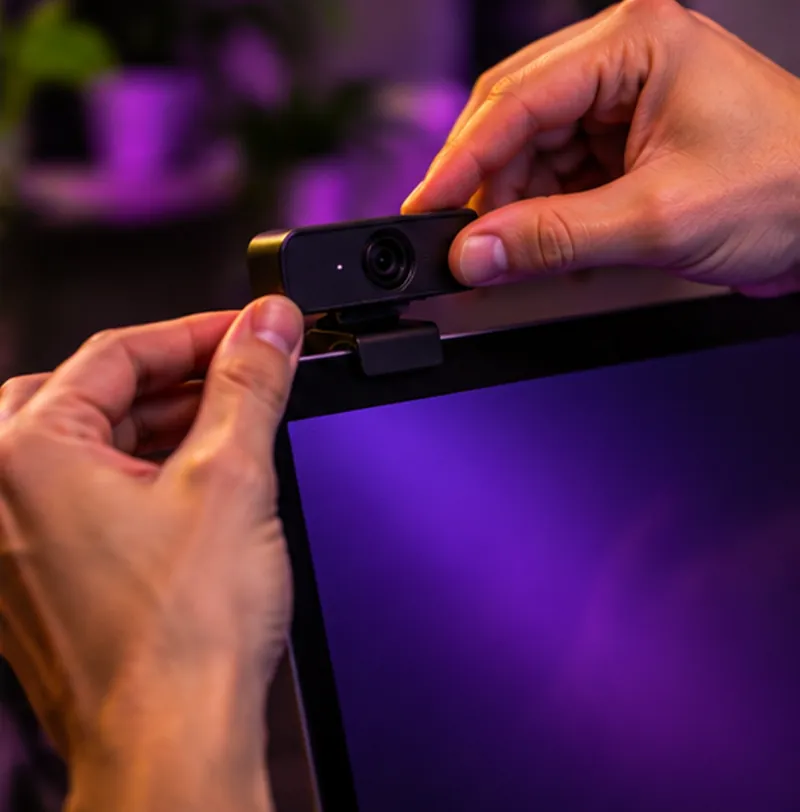
Quick checks first
- Reload the page and try again.
- Close other apps that might be using the camera: Zoom, Teams, FaceTime, Discord or another browser tab.
- Check the physical stuff. Webcam cover slid open? External camera plugged in? Headset muted with a switch?
- Use the site over HTTPS. Browsers only allow camera access on secure pages.
Chrome (Windows, Mac, Linux)
- Click the icon to the left of the address bar (it looks like two sliders or a lock).
- Set Camera and Microphone to Allow.
- Reload the page.
Still blocked? Open chrome://settings/content/camera and chrome://settings/content/microphone, make sure the right device is selected at the top, and remove the site from the "Not allowed" list.
Safari (Mac)
- With the site open, choose Safari → Settings for [site] in the menu bar.
- Set Camera and Microphone to Allow.
- Reload the page.
Firefox
- Click the camera or lock icon in the address bar.
- Clear any "Blocked" permissions for camera and microphone.
- Reload and choose Allow when Firefox asks.
iPhone and iPad (Safari)
- Open Settings → Apps → Safari (on older iOS, Settings → Safari).
- Under Settings for Websites, set Camera and Microphone to Ask or Allow.
- Go back to the site, reload, and tap Allow.
Android (Chrome)
- Tap the icon to the left of the address bar, then Permissions.
- Turn on Camera and Microphone.
- If they're greyed out, open your phone's Settings → Apps → Chrome → Permissions and allow both.
Windows system settings
Windows can block every browser at once. Open Settings → Privacy & security → Camera and make sure Camera access and Let desktop apps access your camera are on. Do the same under Microphone.
macOS system settings
Open System Settings → Privacy & Security → Camera and switch on your browser. Repeat under Microphone. You may need to quit and reopen the browser.
Still not working?
- Try another browser to see whether the problem is the browser or the device.
- Restart your computer or phone. It sounds basic, but it releases a camera another app is holding on to.
- Update your browser and operating system.
- Test your camera in your system's camera app. If it doesn't work there either, it's a hardware or driver issue.
Once it's working, read our cam2cam tips to look and sound your best.
Try random video chat, safely
Free, in your browser, adults only.
Frequently asked questions
Why does my browser say the camera is blocked?
You probably clicked Block once, and the browser remembers it. Change the site's camera permission to Allow and reload.
Why is my camera black?
Another app is usually using it, or a privacy cover is closed. Close other video apps and check the cover.
Why can't the other person hear me?
Check that the microphone permission is allowed, the right microphone is selected in your browser's settings, and your headset isn't muted.